# Execute Response Actions with Crowdstrike OAuth2

In this guide, you will create new credentials for Crowdstrike OAuth2 in order to enable containment and remediation tasks.

<details>

<summary><i class="fa-bolt-lightning">:bolt-lightning:</i> <mark style="color:red;">Available actions</mark></summary>

The following actions are available after you set up the Crowdstrike OAuth2 action connector. Keep in mind, additional permissions are required.

* Block files
* Isolate device
* Release devices from isolation

</details>

At the end of this configuration, you will provide Radiant Security with these values:

* **Client ID**
* **Secret**
* **Base URL**

### Prerequisites

* [ ] Permissions: Falcon Administrator
* [ ] License: Falcon Insight

### Create credentials for Crowdstrike Oauth

1. Log in to your CrowdStrike Falcon console as an administrator.
2. From the upper left corner, click the **Menu** **icon**.
3. Click **Support and Resource**, then select **API Clients and Keys**.
4. Click **Add new API client** under the **OAuth2 API Clients** section.
5. Add the following information:
   * Name: `Radiant Security API Access`
   * Description: `Enable Radiant Security to take containment and remediation actions.`
   * Permissions:

     <table><thead><tr><th width="123">Permission</th><th width="82">Read</th><th width="78">Write</th><th>Use Case</th></tr></thead><tbody><tr><td>Hosts</td><td>X</td><td>X</td><td>Endpoint telemetry, endpoint device context, endpoint actions</td></tr><tr><td>Indicators</td><td>X</td><td>X</td><td>Endpoint telemetry, endpoint actions</td></tr></tbody></table>
6. Click **Add**.
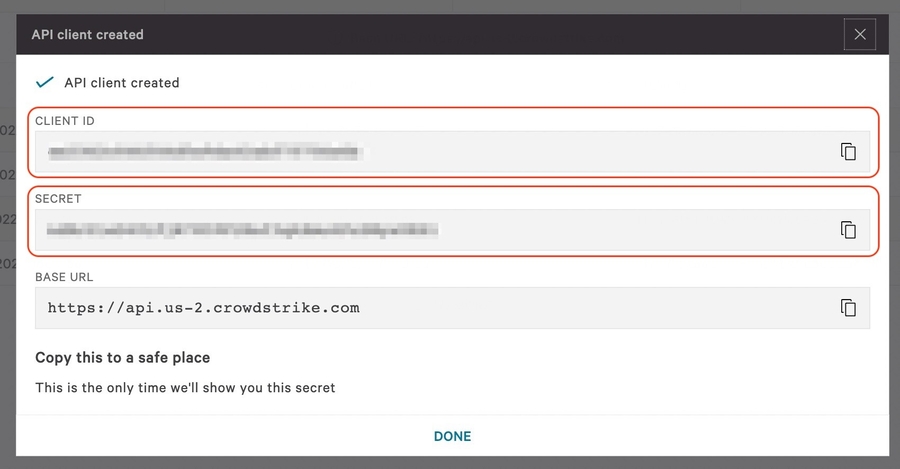
7. Copy the Client ID, Secret ID, and Base URL for the next steps.
   * `Client ID`
   * `Client Secret Key`
   * `Base URL`\
     \
     ![CS SSD](https://20705827.fs1.hubspotusercontent-na1.net/hubfs/20705827/Knowledge%20Base%20Articles/Action%20Connector%20-%20Crowdstrike%20OAuth2/CS%20SSD.jpg)

{% hint style="warning" %}
**Important note:** Be sure to document and store the **Secret** carefully, as it cannot be retrieved later.
{% endhint %}

### Add the data connector in Radiant Security

1. Log in to [Radiant Security](https://app.radiantsecurity.ai/).
2. From the navigation menu, select **Settings** > **Data Connector** and click **+ Add Connector**.
3. Select the **Crowdstrike OAuth2** vendor from the list and click **Data Feeds.**
4. Under **Select your data feeds,** select **SSD** and **Crowdstrike** **API** and click **Credentials.**
5. Under **Credential Name**, give the credential an identifiable name (e.g.`Crowdstrike Credentials`).
6. Under **Required** **Credentials**, add the **API** **Base** **URL** and the **API Token** that you copied from the previous section.
7. Click **Add Connector** to save the changes.<br>

### Add an action connector

1. From the navigation menu, select **Settings** > **Action Connectors** and click **+ Add Connector** to create a new action connector.
2. Select the correct vendor from the list.
3. Confirm that the selected credentials are correct.
4. Click **Add Connector** to finish creating the new action connector.\ <br>